

Why isn’t my session showing on my Public Booking Page?
If you’ve created a session but don’t see it on your Public Booking Page, it’s usually a settings issue. Here are the most common reasons and how to fix them.
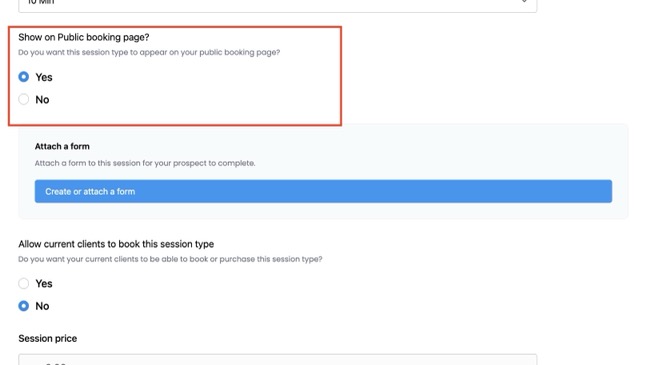
1. “Show on Public booking page” is set to No
- Go to Offers → Session Types → Edit.
- Scroll to Show on Public booking page?
- Make sure it’s set to Yes.
- Only sessions marked “Yes” will appear on your Public Booking Page.
2. The session is still in Draft
- Check the Publication settings at the bottom of the form.
- Draft sessions don’t show anywhere.
- To make it eligible for your Public Booking Page, set Status to Published. Only Published sessions can appear.
3. Your Public Booking Page isn’t published yet
- Go to Profile & Booking → Public Booking Page.
- Make sure the Publish Page switch is on. The label next to the page title should say Live.
- If the page itself is “Not Published,” no sessions will appear.
4. You don’t have confirmed availability
- Sessions on Public Booking Page only appear if you’ve confirmed your availability schedule.
- Go to Calendar & Booking → Public Booking Page. In the Steps to Go Live checklist, under Confirm your availability, click Review Availability to check your hours, then click Confirm Availability.
- Until you confirm, your page will stay in setup mode.
5. You’re looking at Preview mode
- If you open Preview Page before publishing, you’ll see a banner: “Preview Mode – This page is not live yet.”
- That’s just a preview. Visitors can book your sessions once you publish.
6. The session shows, but some times are missing
That’s usually your calendar doing its job. A time is hidden if it clashes with an existing LCH Core session, a busy event on a connected Google or Outlook calendar, or the buffer time around them. To change which calendars are checked, click your profile picture (top right), then Integrations, and update Calendars to check for conflicts.
If no times show at all and you have a calendar connected, the connection may need refreshing. Reconnect it on the Integrations page.
Quick checklist to make your session appear:
- Show on Public booking page = Yes
- Status = Published (not Draft)
- Public Booking Page is Published
- Availability is confirmed
👉 Still not working? Double-check that you created a Session Type (not just a Package or Course), since only Session Types can show on your Public Booking Page.
 Frequently Asked Questions
  Contact Support